The easiest way to backup a website automatically is by using a reliable backup solution that creates scheduled copies of your website files and database without manual intervention. Automated backups help protect your website from unexpected data loss, security incidents, failed updates, and server issues while reducing the risk of extended downtime.
Whether you manage a business website, an online store, or a WordPress site, a dependable backup strategy is essential for keeping your data safe. In this guide, you’ll learn why automatic website backups matter, the most common backup methods available, and how to build a backup routine that supports long-term website reliability.
Why Automatic Website Backups Are Essential
Your website is one of your most valuable digital assets. It contains content, customer information, images, databases, and countless hours of work. Losing any of that data can interrupt business operations and take significant time to recover.
Automatic website backups create copies of your website on a scheduled basis, ensuring you always have a recent version available if something goes wrong. Instead of relying on memory or manually downloading files, website backup automation protects your data consistently and reduces the chance of human error.
The Risks of Relying on Manual Backups
Manual backups may work for small websites that rarely change, but they become difficult to manage as your website grows. New pages, blog posts, products, and software updates can quickly make an older backup outdated.
Some common risks of relying on manual backups include:
- Forgetting to create backups after making changes
- Losing recently added content
- Saving incomplete website files
- Keeping outdated database copies
- Spending more time restoring the website after an issue
Imagine publishing new service pages, updating pricing, and installing plugin updates throughout the week. If your website crashes before you perform another manual backup, all of those recent changes could be lost.
Businesses operating in a fully managed hosting environment often avoid these problems because automated backups, server maintenance, and system monitoring work together to keep website data protected without requiring constant manual attention.
What an Automatic Backup Protects Against
Unexpected problems can happen even on well-maintained websites. A software update may fail, a plugin conflict could break important functionality, or accidental file deletion might make parts of the website inaccessible.
Automatic website backups help protect against:
- Accidental deletion of website files
- Plugin or theme conflicts
- Failed CMS or plugin updates
- Malware infections
- Server hardware failures
- Website hacking attempts
- Database corruption
While backups cannot prevent these issues, they dramatically reduce recovery time because you can restore a recent working version instead of rebuilding your website from scratch.
Backups should also be part of a broader security strategy. Protecting your website with encrypted HTTPS connections secures data exchanged between your website and visitors, while automatic backups provide a reliable recovery option if technical or security problems occur.
Common Methods for Automatic Website Backups
There are several ways to automate website backups, and each option offers different levels of flexibility and control. The right choice depends on your website platform, traffic, hosting environment, and recovery requirements.
Hosting Provider Backups
Many hosting providers include automatic website backups with their hosting plans. These backups often run daily or weekly and allow you to restore previous versions of your website with minimal effort.
Some benefits of hosting-based backups include:
- Automatic scheduling
- One-click restoration
- No additional software to install
- Centralized website management
Before choosing a hosting provider, compare the backup features included with your web hosting plan, such as backup frequency, retention period, available storage, and restoration options. These features vary between hosting companies and can make a significant difference when recovering from unexpected problems.
Website Backup Plugins
Website backup plugins are particularly popular with WordPress users because they offer greater control over backup schedules and storage locations.
Most backup plugins allow you to:
- Schedule automatic website backups
- Back up both website files and databases
- Store backups on cloud services
- Restore previous versions quickly
- Choose between full and incremental backups
This flexibility makes plugins an excellent website backup solution for businesses that want more control over their backup process without managing server-level configurations.
However, plugins still require regular monitoring. A failed backup that goes unnoticed provides little protection when you actually need to restore your website.
Cloud Backup Services
Cloud backup services store copies of your website on remote servers instead of keeping every backup on the same hosting account.
Because backups are stored separately from your primary website, they remain available even if your hosting server experiences hardware failure or a major security incident.
Some key advantages include:
Feature | Benefit |
|---|---|
Offsite storage | Protects backups if the primary server fails |
Automatic synchronization | Keeps backup copies up to date |
Scalable storage | Supports growing websites |
Secure storage | Protects backup files from unauthorized access |
Many businesses combine cloud backups with automated hosting backups to create multiple recovery points. This layered approach provides greater protection against data loss and makes the website restore process faster and more reliable when unexpected issues occur.
How to Set Up Automatic Website Backups
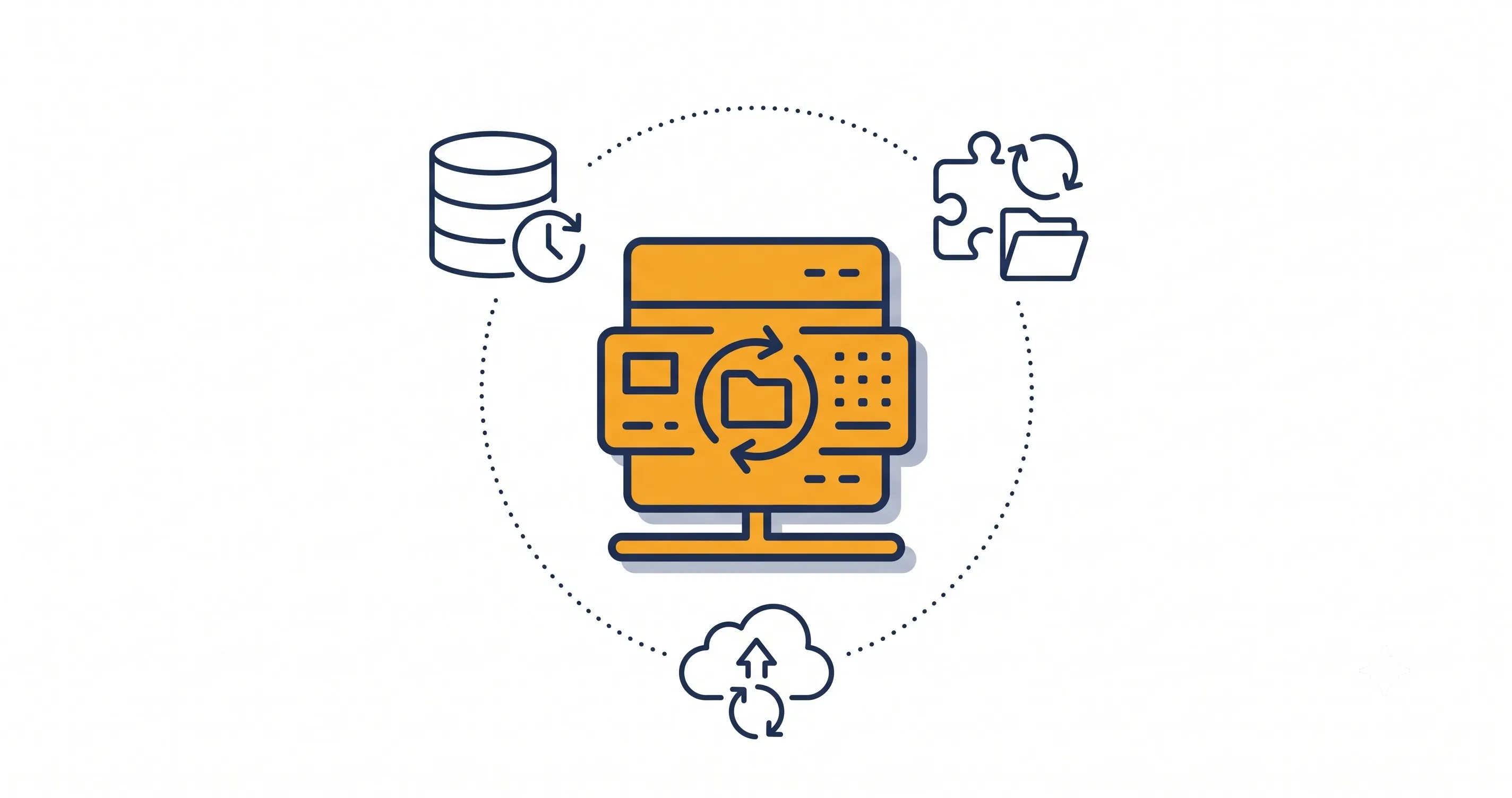
Setting up automatic website backups is straightforward once you establish a routine that matches your website’s needs. The goal is to ensure your website files and database are backed up consistently and can be restored quickly whenever necessary.
Choose the Right Backup Schedule
Your backup schedule should reflect how frequently your website changes.
A practical approach includes:
- Daily backups for eCommerce websites and frequently updated blogs
- Weekly backups for business websites with occasional updates
- Immediate backups before installing new plugins or themes
- Full backups before redesigns or website migrations
The more often your website changes, the more frequently you should create backups.
Store Backups in Multiple Locations
Saving every backup on the same server as your website creates unnecessary risk. If the server experiences hardware failure, malware, or data corruption, your backups may be lost along with your website.
A safer backup strategy includes storing copies in multiple locations, such as:
- Your hosting account
- Secure cloud storage
- An external drive
- A dedicated backup service
Keeping backup copies in different locations provides additional protection and improves your ability to recover quickly after an unexpected incident.
Test Your Backups Regularly
Creating backups isn’t enough—you also need to verify they work.
Perform periodic test restores in a staging environment to confirm that your website files, media library, and database can all be recovered successfully.
Regular backup testing should also be part of your overall strategy for preventing website downtime, since identifying restoration problems before an emergency can significantly reduce recovery time.
Best Practices for Reliable Website Backups
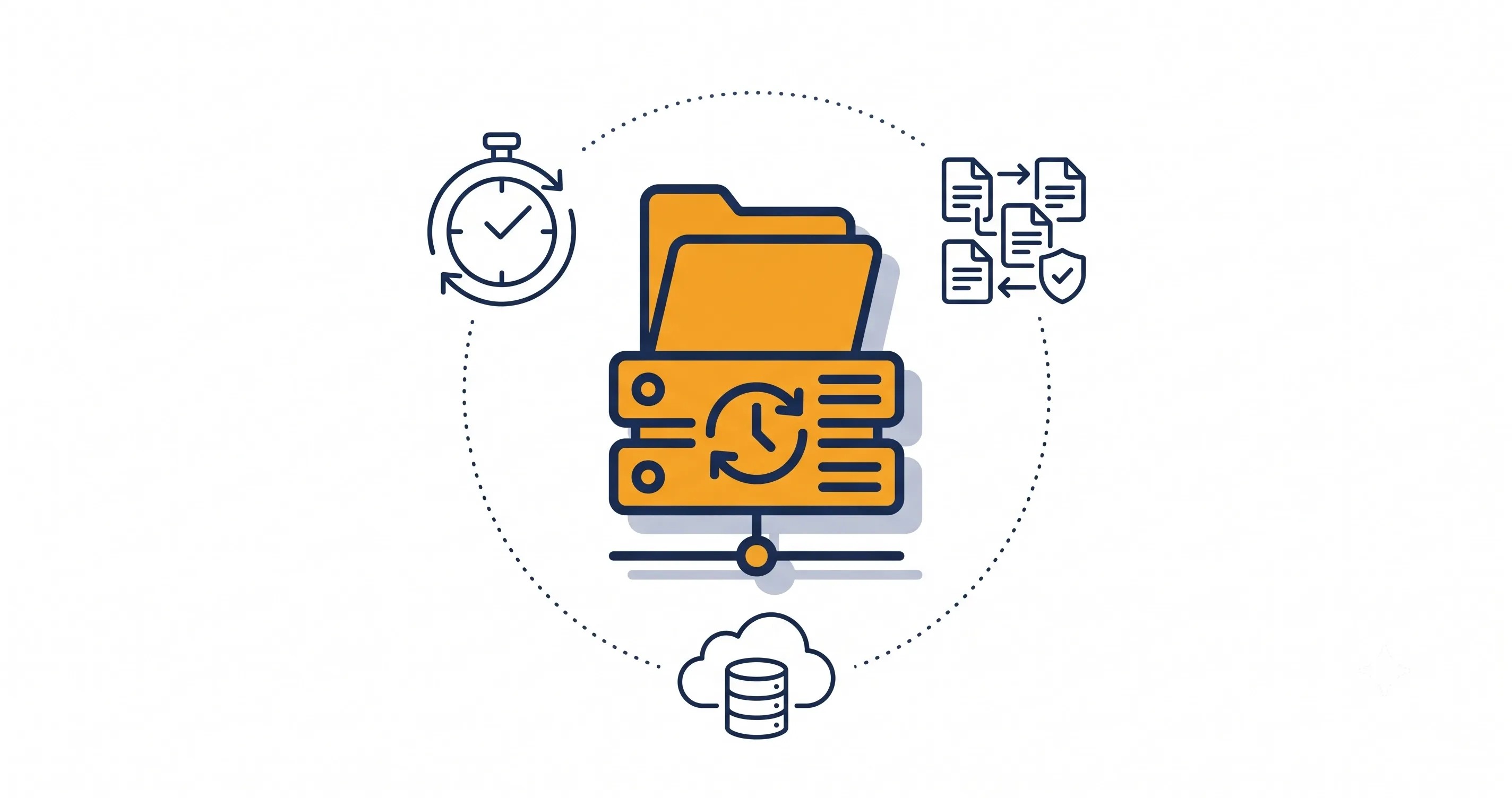
An automatic backup solution is most effective when combined with consistent monitoring and good maintenance habits.
Keep Multiple Backup Versions
Instead of relying on a single backup file, maintain several restore points.
For example:
- Daily backups for the previous seven days
- Weekly backups for the previous month
- Monthly backups for several months
This approach allows you to restore your website from different points in time if an issue isn’t discovered immediately.
Secure Backup Files
Website backups often contain sensitive information, including customer records, configuration files, and databases.
Protect your backups by:
- Encrypting backup files whenever possible
- Restricting access to authorized users
- Using secure cloud storage
- Removing outdated backups that are no longer needed
Keeping backups secure is just as important as creating them.
Monitor Backup Success and Errors
Automatic backups should never be considered completely hands-off.
Review backup logs regularly to verify that:
- Scheduled backups completed successfully
- Storage space remains available
- Backup files aren’t corrupted
- Error notifications are received
Monitoring your backup process helps identify problems before they affect your ability to recover your website.
Update Your Backup Strategy as Your Website Grows
As your website grows, your backup requirements will change as well.
Larger websites often contain more media files, databases, and customer information, which means backups take longer and require additional storage. Businesses preparing for higher visitor numbers should also consider scaling their hosting for growing traffic, ensuring both website performance and backup processes remain reliable as demand increases.
Common Website Backup Mistakes to Avoid
Even with automatic website backups, avoid these common mistakes:
- Storing Backups on the Same Server: Always keep at least one backup in a separate location to protect against complete server failure.
- Never Testing Backup Restores: A backup is only valuable if it can be restored successfully when needed.
- Backing Up Too Infrequently: Websites that change regularly should have backup schedules that reflect those updates.
- Ignoring Database Backups: Backing up only website files without the database leaves important content, user information, and settings unprotected.
How to Choose the Right Automatic Backup Solution
The best backup solution depends on your website’s size, complexity, and recovery requirements.
When comparing providers, consider:
- Website Size and Complexity: Larger websites require scalable storage and flexible scheduling.
- Recovery Speed and Ease of Restoration: Look for solutions that allow quick restores without complicated technical steps.
- Storage Options and Security: Multiple storage locations and encrypted backups improve reliability.
- Automation Features and Notifications: Automatic scheduling, backup verification, and email alerts help ensure your backups continue running successfully.
Choosing a solution that combines reliable hosting with automated backups makes long-term website maintenance much easier.
Conclusion
Automatic website backups are one of the most effective ways to protect your business from unexpected data loss, server failures, and software issues. By scheduling backups, storing them in multiple locations, and testing them regularly, you can recover quickly when problems occur.
A dependable backup strategy works best alongside reliable hosting and proactive server management. If you’re looking for expert guidance on protecting your website with secure hosting and automated backup solutions, contact our team to discuss the right solution for your business.
Share this article