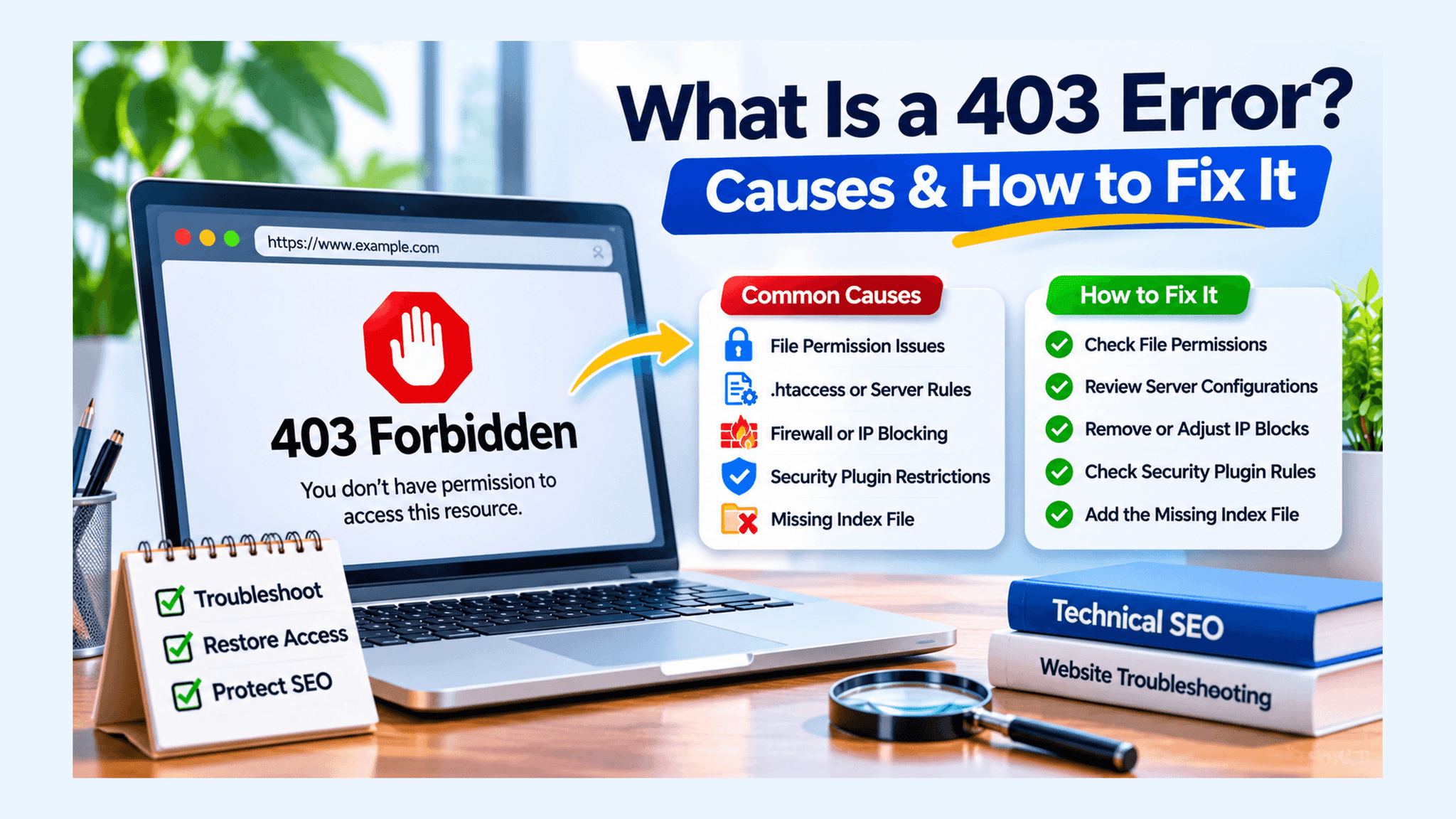
A website can be working perfectly for most visitors and still return a 403 Forbidden error when someone tries to access a particular page. This can happen because of incorrect file permissions, security restrictions, firewall rules, or server configurations that prevent access to specific resources.
A 403 error means the web server received and understood the request but refused to allow access to the requested resource. Unlike a 404 error, which indicates that a resource cannot be found, a 403 response means the server is denying access.
For website owners, this problem deserves attention. If Googlebot receives a 403 response when trying to crawl an important page, Google may stop using that URL for search indexing. For visitors, it creates an immediate barrier that can prevent them from accessing important information or completing an action.
Understanding what causes a 403 error and how to resolve it can help you restore website accessibility, protect important resources, and avoid unnecessary SEO problems.
What Is a 403 Forbidden Error?
A 403 Forbidden error is an HTTP client error status code that indicates the server refuses to fulfill a request because access to the requested resource is not permitted.
In simple terms, the server receives your request but does not allow you to view the page or perform the requested action.
For example, imagine a website has a private administration directory. A regular visitor attempts to access that directory through a browser. The server recognizes the request but blocks access because the visitor does not have the required permissions.
The browser may display messages such as:
- 403 Forbidden
- HTTP Error 403
- Access Denied
- You don't have permission to access this resource
- Forbidden: You are not allowed to access this page
The exact message depends on the web server, hosting provider, firewall, or application generating the response.
According to the HTTP specification, a 403 response means the server understood the request but refuses to fulfill it. The restriction may be related to permissions, security policies, or other access rules.
403 vs. 401 vs. 404: Understanding the Difference
Not all website access errors mean the same thing. Understanding the differences between HTTP status codes helps identify the actual problem instead of applying the wrong solution.
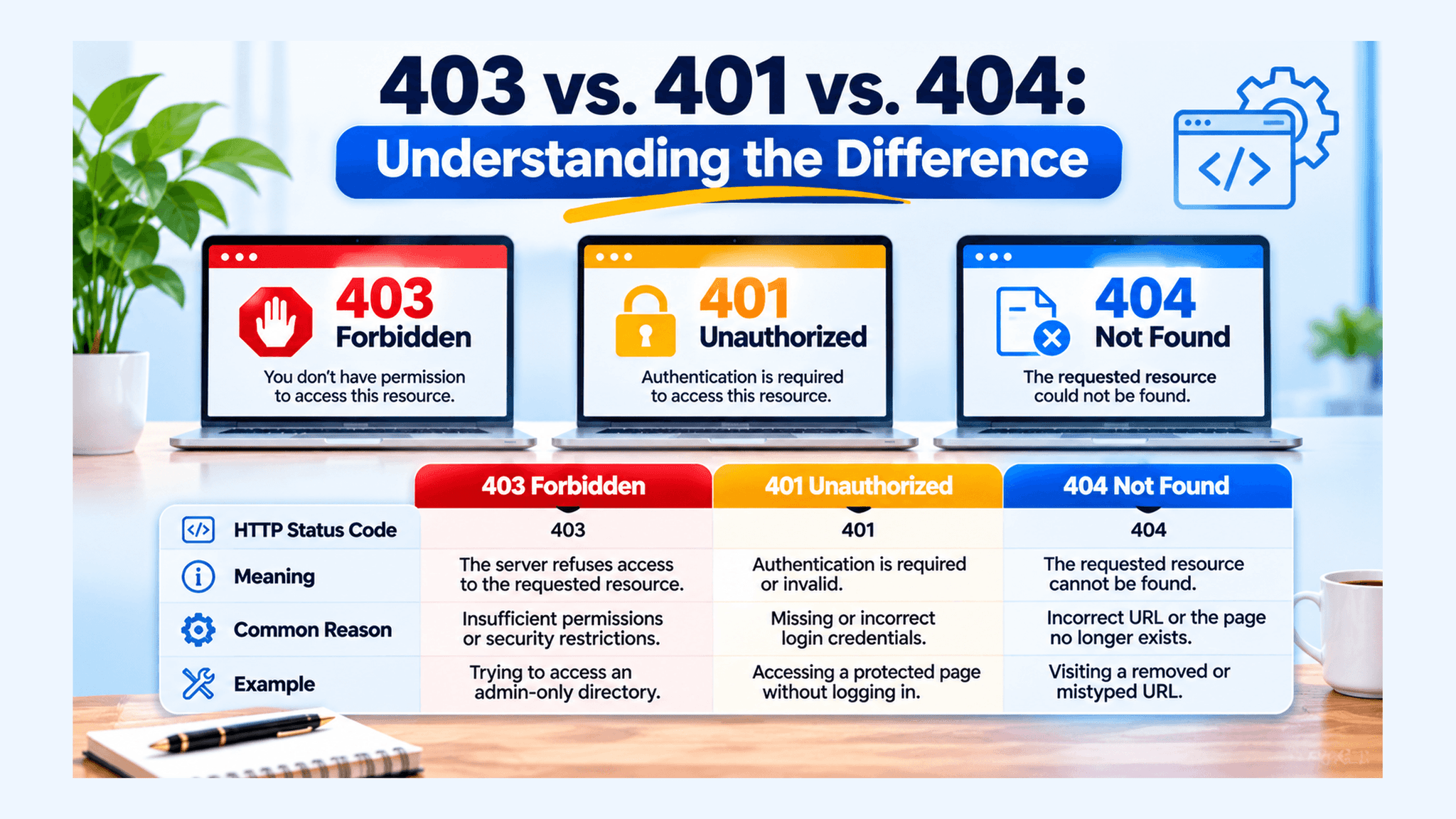
HTTP Status Code | Meaning | Common Reason |
|---|---|---|
401 Unauthorized | Authentication is required or invalid | Missing or incorrect login credentials |
403 Forbidden | The server refuses access | Insufficient permissions or security restrictions |
404 Not Found | The requested resource cannot be found | Missing or incorrect URL |
405 Method Not Allowed | The request method is not supported for the resource | Using a restricted HTTP method |
For example, a website may return a 401 response when someone attempts to access a private account without logging in. If the person successfully authenticates but doesn't have permission to access an administrator-only resource, the server may return 403.
A 404 response is different because the requested resource cannot be found or the server chooses not to disclose its existence.
Understanding these differences helps website administrators troubleshoot errors more accurately.
Common Causes of a 403 Forbidden Error
A 403 error can originate from several parts of a website's infrastructure. The problem may involve the web server, hosting environment, security software, or application-level access rules.
Here are some common causes worth investigating.
1. Incorrect File and Directory Permissions
File and directory permissions control which users and processes can read, modify, or execute website files.
When these permissions are configured incorrectly, the web server may not have sufficient access to deliver the requested content.
For example, a website file may have restrictive permissions that prevent the server from reading it. Similarly, a directory may not allow the web server process to access its contents.
On many Linux-based hosting environments, commonly used permission settings include:
- Files: 644
- Directories: 755
These are common defaults, not universal requirements. The correct settings depend on your hosting environment, ownership, and server configuration.
How to fix it:
- Log in to your hosting control panel or connect through SFTP.
- Locate the affected website directory.
- Check the permissions of the affected files and folders.
- Compare them with the recommended settings from your hosting provider.
- Correct inappropriate permissions and test the affected URL again.
Avoid setting permissions to 777 simply to make a page accessible. This can expose your website to unnecessary security risks.
2. Incorrect .htaccess or Server Configuration
The .htaccess file controls certain server-level behaviors on websites running Apache with directory-level configuration enabled.
An incorrect rule in this file can block access to pages, directories, or specific IP addresses.
This problem may occur after installing a plugin, changing website settings, migrating hosting providers, or manually editing server rules.
For example, an incorrect access restriction may prevent visitors from accessing a public directory even though the page itself is working correctly.
How to fix it:
- Access your website files through your hosting control panel or SFTP.
- Locate the
.htaccessfile in your website's root directory. - Create a backup before making changes.
- Review recently added rewrite, deny, and access-control rules.
- Check for incorrect restrictions or conflicting directives.
- Restore a known working configuration if the problem started after a recent change.
- Test the affected pages after making corrections.
For Nginx websites, review the relevant server block and access-control directives instead. Nginx does not use .htaccess files.
If you're unsure which rule is causing the issue, ask your hosting provider or developer to review the server configuration.
3. IP Address Blocking or Firewall Restrictions
Web servers and security systems often restrict IP addresses to protect websites against suspicious traffic, automated attacks, and unauthorized access attempts.
However, legitimate visitors can sometimes get blocked accidentally.
This may happen when:
- A security plugin blocks an IP address.
- A firewall identifies normal traffic as suspicious.
- Too many requests trigger a security restriction.
- A hosting provider blocks an IP range.
- A CDN or Web Application Firewall applies an incorrect security rule.
For example, a business owner may be able to access their website from a mobile connection but receive a 403 error when using their office internet connection.
This could indicate that the office IP address has been blocked.
How to fix it:
- Check your hosting firewall and security logs.
- Review blocked IP addresses and security events.
- Identify whether the affected visitor or IP address was incorrectly restricted.
- Remove the block only if the traffic is legitimate.
- Review firewall rules to prevent similar false positives.
If you use Cloudflare or another CDN, check its security events and access rules as well.
4. WordPress Security Plugins Blocking Access
WordPress security plugins help protect websites against malware, brute-force login attempts, suspicious requests, and unauthorized access.
However, incorrect security settings can sometimes block legitimate visitors or search engine crawlers.
For example, a firewall rule may restrict access to a specific URL or block requests based on their IP address or user-agent information.
This can result in a 403 response even when the website's pages are publicly accessible under normal conditions.
How to fix it:
- Log in to your WordPress administration dashboard.
- Review recently installed or updated security plugins.
- Check the plugin's firewall and access-control logs.
- Identify rules blocking the affected request.
- Adjust the incorrect rule or allow legitimate traffic.
- Test the affected page again.
If you cannot access the WordPress dashboard, you may need to temporarily disable the suspected plugin through your hosting file manager or SFTP.
Do this carefully and restore appropriate security protection after identifying the problem.
5. Missing Index File or Directory Access Restrictions
Web servers commonly look for default files such as index.html or index.php when someone visits a directory.
If the expected index file is missing and directory listing is disabled, the server may return a 403 Forbidden response.
For example, someone visits:
example.com/resources/
But the directory does not contain a recognized default index file. Depending on the server configuration, access may be denied.
How to fix it:
- Check whether the directory contains the correct index file.
- Confirm that the file name matches the server's configured default document.
- Review directory permissions.
- Check whether directory listing restrictions are configured intentionally.
- Restore the missing index file if the directory is supposed to display a webpage.
Do not enable public directory browsing simply to remove the error. This could expose private website files.
6. CDN or Web Application Firewall Restrictions
A Content Delivery Network (CDN) and Web Application Firewall (WAF) help protect websites and improve content delivery.
However, incorrectly configured security rules can deny legitimate requests.
For example, a firewall may block a request because it contains a particular parameter, originates from a restricted IP range, or matches a security rule.
How to fix it:
- Review your CDN security event logs.
- Check WAF rules associated with the affected URL.
- Identify whether a legitimate request was blocked.
- Adjust the specific rule instead of disabling the entire firewall.
- Retest the URL after making the change.
If the origin server works but the CDN returns a 403 response, investigate the CDN configuration first.
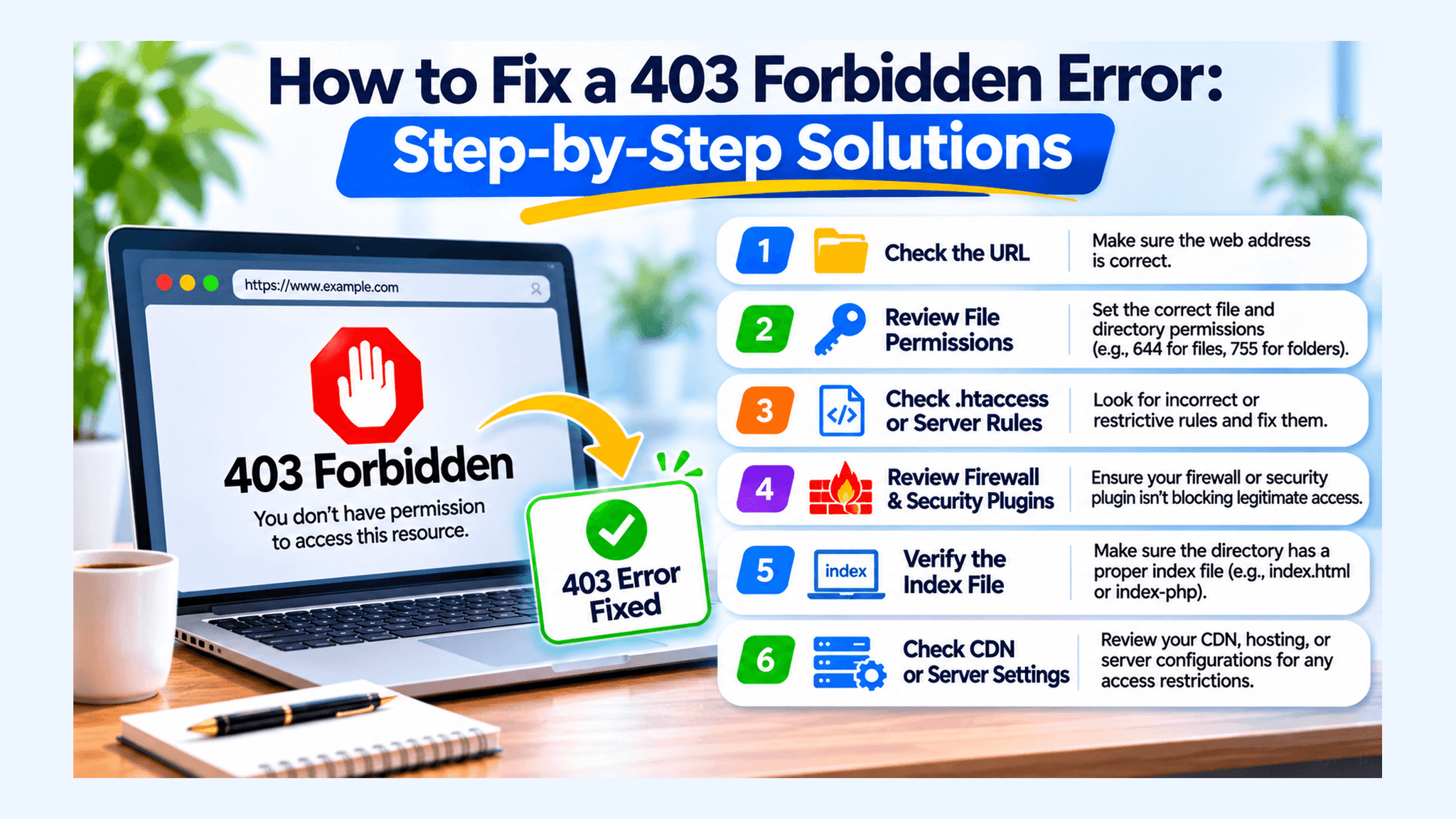
How to Fix a 403 Forbidden Error: Step-by-Step Solutions
The right solution depends on whether you're a website visitor or the person managing the website.
For Website Visitors
If you encounter a 403 error while browsing someone else's website, try these steps.
1. Check the URL
Make sure the address is correct. Remove accidental spaces, incorrect characters, or unnecessary URL parameters.
2. Refresh the Page
A temporary access restriction or browser-related issue may disappear after reloading the page.
3. Clear Browser Cache and Cookies
Your browser may retain outdated session information or cookies.
Clear the relevant website data and try accessing the page again.
4. Sign In With the Correct Account
Some resources are available only to registered users or specific account types.
If the website requires authentication, sign in with an account that has the necessary access permissions.
5. Try Another Network
Switch between your Wi-Fi and mobile data connection. If the page works on one network but not the other, your IP address or network may be restricted.
6. Contact the Website Administrator
If none of these steps works, the restriction may be controlled by the website itself. Contact the website owner and share the affected URL and error message.
For Website Owners and Developers
If you manage the website, you have more control over identifying and correcting the underlying issue.
Follow this troubleshooting process:
1. Confirm the HTTP Response
Use your browser's developer tools or an HTTP testing tool to confirm whether the affected URL actually returns a 403 response.
You can also run:
curl -I https://example.com/affected-page/
Check the returned HTTP status and response headers.
2. Review Server Error Logs
Server logs can help identify whether the request was blocked by file permissions, access rules, or another server-level restriction.
Check the relevant Apache, Nginx, hosting, or security logs.
3. Review Recent Website Changes
Determine whether the problem started after:
- Installing or updating a plugin.
- Changing file permissions.
- Editing
.htaccessor server configuration. - Updating firewall settings.
- Migrating the website.
- Changing CDN security rules.
Reversing a recent problematic change can help identify the source.
4. Test the Website Without Disabling Security Permanently
If a security plugin or firewall is suspected, investigate its logs and rules. Use a controlled test to confirm the cause without leaving the website unprotected.
5. Contact Your Hosting Provider
If the error persists, ask your hosting provider to investigate server-level access restrictions, ownership, permissions, and firewall rules.
Providing the affected URL, approximate time of the error, and response details can help them investigate more quickly.
How Does a 403 Error Affect SEO and Google Rankings?
A 403 error can become an SEO problem when Googlebot receives it while trying to access an important, publicly available page.
Google needs to crawl website content to process it for search indexing. If an important URL repeatedly returns a 403 response, Google cannot access the page content through that request.
According to Google's documentation, URLs returning 4xx status codes are generally not used for indexing. Previously indexed URLs that continue returning 4xx responses can eventually be removed from Google's index.
This makes it important to investigate unexpected 403 errors, particularly on service pages, landing pages, and valuable blog posts.
1. Googlebot May Be Unable to Access Important Pages
If your server blocks Googlebot from accessing public content, Google may not be able to retrieve the information needed for indexing.
Check your security plugins, firewall rules, and server configurations to ensure legitimate Googlebot requests are not being blocked.
2. Important Pages May Disappear From Search Results
If an indexed page starts returning a 403 response, Google may eventually remove it from search results.
For businesses, this can mean losing organic visibility for pages that attract relevant visitors and potential customers.
3. Internal Links May Lead Visitors to Restricted Pages
Imagine a blog post linking to a service page that suddenly returns a 403 error.
Visitors who click that link cannot access the destination. This creates a frustrating experience and interrupts the journey through your website.
Review internal links and make sure important destination pages are accessible.
4. Search Engine Crawling Becomes Less Effective
When important URLs are inaccessible, Google cannot retrieve their content for normal indexing processes.
However, a 403 response should not automatically be treated as a website-wide ranking penalty. The actual impact depends on which URLs are affected, whether access restrictions are intentional, and how long the problem continues.
How to Check 403 Errors in Google Search Console
Google Search Console can help identify crawling problems affecting your website.
Follow these steps:
- Open your Google Search Console account.
- Select the website property you want to investigate.
- Navigate to the Page Indexing report.
- Review affected URLs and their indexing statuses.
- Investigate pages that should be publicly accessible but cannot be crawled.
- Test important URLs using the URL Inspection tool.
- Resolve the server or security restriction.
- Request indexing for important corrected URLs when appropriate.
Remember that a 403 response is not always a problem. Login pages, private account areas, and restricted administration directories may correctly return 403 responses.
The goal is to make sure public pages intended for search indexing remain accessible.
How to Prevent 403 Forbidden Errors in the Future
Fixing an existing 403 error is important, but preventing unnecessary access restrictions can save time and protect your website's performance.
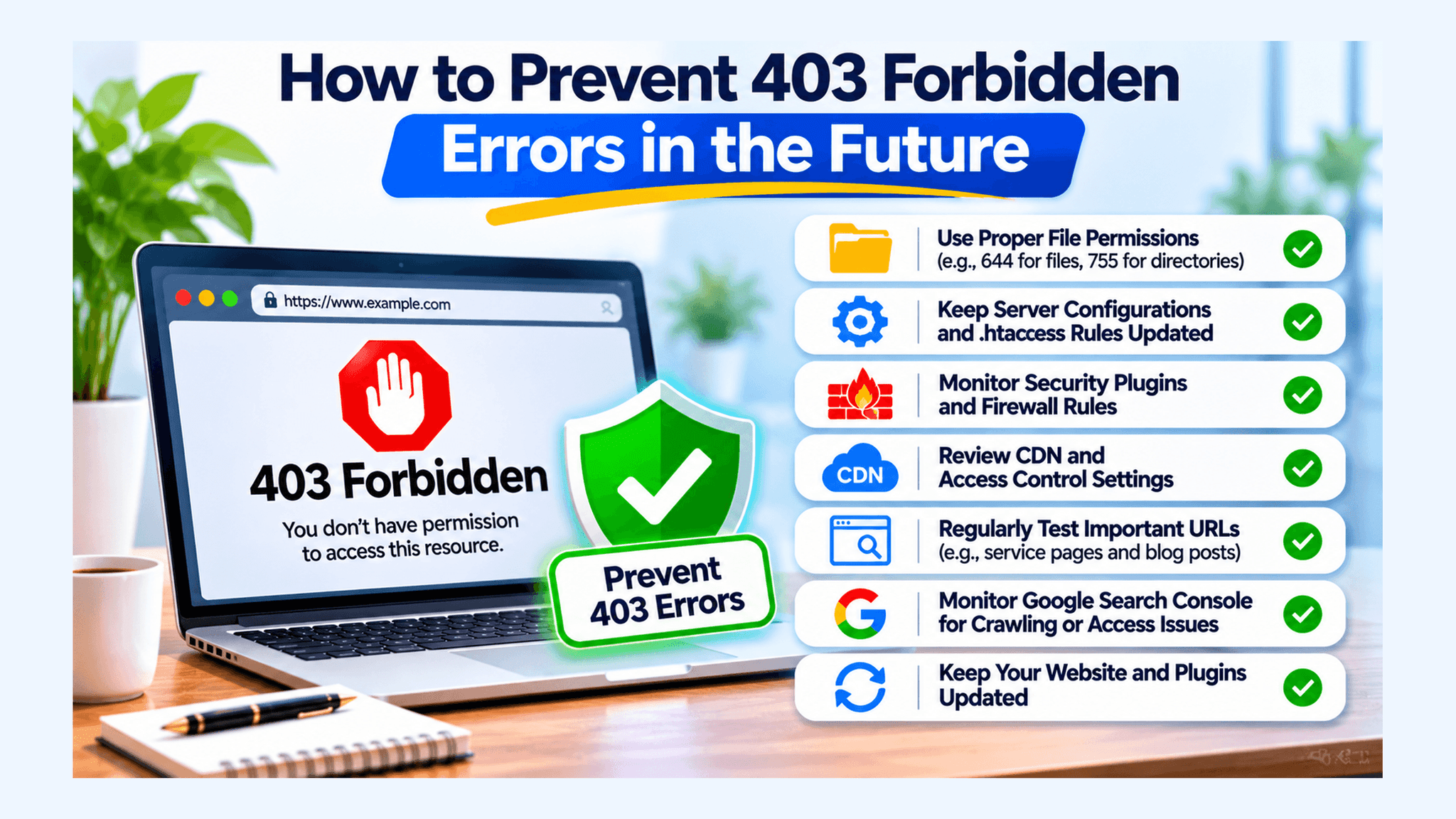
Follow these maintenance practices:
- Review file permissions: Use appropriate file ownership and permission settings.
- Monitor security plugins: Check firewall logs and review access rules after updates.
- Maintain server configurations: Back up configuration files before making changes.
- Test important URLs: Regularly check public service pages, blog posts, and landing pages.
- Review CDN settings: Make sure security rules don't block legitimate traffic.
- Monitor Google Search Console: Investigate unexpected crawling and indexing problems.
- Keep website software updated: Apply security updates while checking that existing access rules continue working.
A regular website maintenance routine can help identify access problems before they affect visitors or search visibility.
Final Thoughts
A 403 Forbidden error doesn't necessarily mean your website is broken. It means the server is refusing a particular request, usually because of permissions, security restrictions, or access-control settings.
The important part is identifying why the request is being denied.
For website visitors, checking the URL, clearing browser data, and verifying account access may help. For website owners, reviewing file permissions, server configurations, security plugins, firewall rules, and server logs is a more effective way to find the actual cause.
From an SEO perspective, pay particular attention to public pages that should be accessible to Googlebot. An unexpected 403 response can prevent Google from processing important content and may eventually affect its presence in search results.
At 1REALTOUR, we understand how technical website problems can affect search visibility and online performance. Our SEO services help businesses identify website optimization opportunities and build a stronger foundation for organic growth.
Share this article